Operating Systems Study Notes
Section 1: Spooling & Buffering
Definition
Spooling (Simultaneous Peripheral Operations Online) is a technique used by an operating system to manage slow input/output (I/O) devices efficiently. Data is temporarily stored so that the CPU does not have to wait for slow I/O devices.
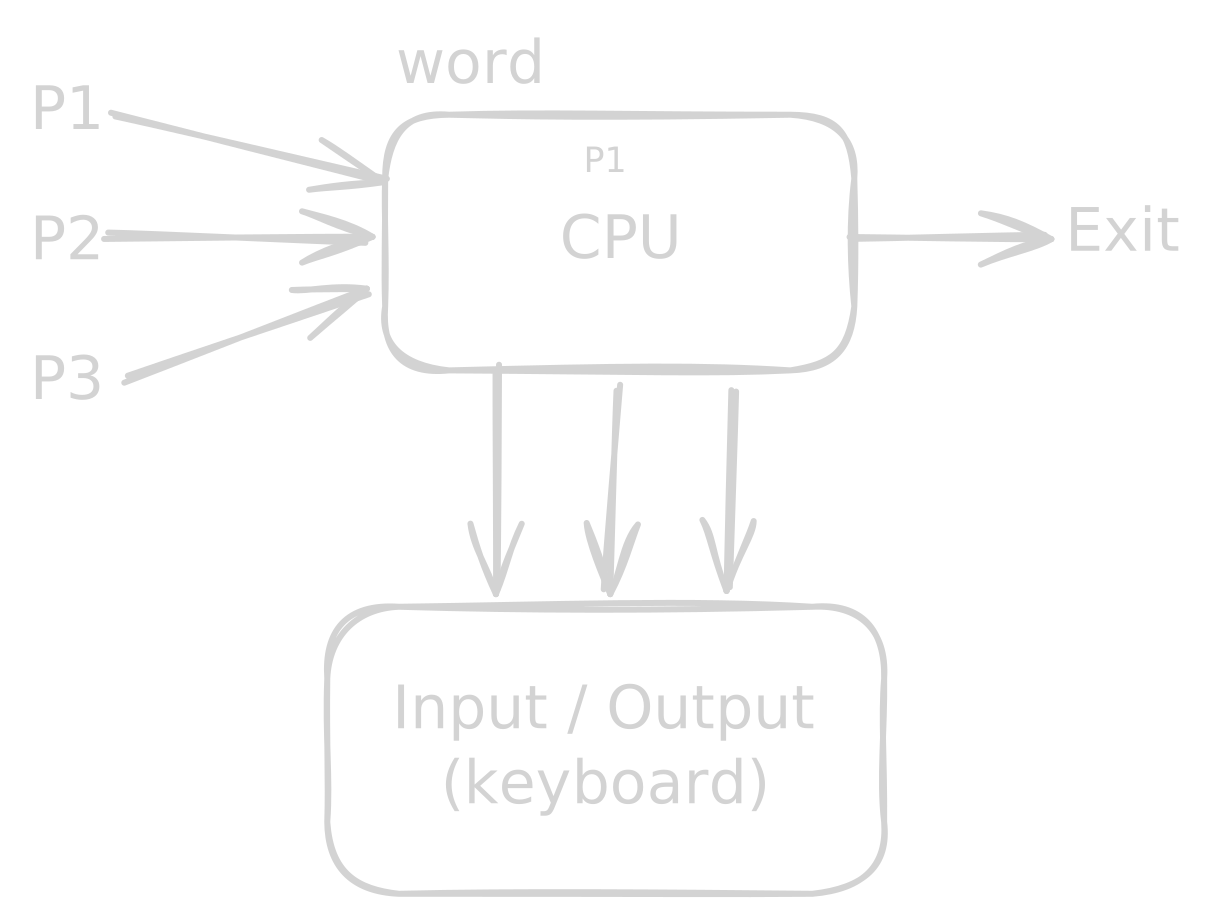
Buffer
A buffer is a temporary area of memory used to hold data while it is being transferred between a fast component, such as the CPU, and a slower I/O device.
- A buffer temporarily stores data during I/O operations.
- Buffers are commonly located in RAM.
- A buffer is not necessarily restricted to I/O devices.
- The purpose of buffering is to reduce the waiting time between components operating at different speeds.
- Spooling commonly uses secondary storage, such as a disk, to queue I/O jobs.

Key Points
- I/O devices are generally much slower than the CPU.
- If the CPU waits for every I/O operation, CPU time is wasted.
- Data can be temporarily stored in a buffer or spool.
- The CPU can continue processing while I/O operations are handled.
- Spooling is especially useful when multiple jobs need to use the same I/O device, such as a printer.
Example / Code
Example: Printing documents
Suppose three processes need to print documents:
P1 → Document 1 ─┐
P2 → Document 2 ─┼→ Spool/Queue → Printer
P3 → Document 3 ─┘
Instead of making the CPU wait for the printer to finish each document, the documents are placed in a queue. The printer processes them one by one.
Explanation
The CPU is much faster than most I/O devices. Therefore, continuously waiting for an I/O device would reduce system performance.
With buffering, data is temporarily held while it moves between devices with different speeds.
With spooling, multiple I/O jobs can be placed into a queue, usually on secondary storage, and processed by the I/O device when it becomes available.
Important distinction:
- Buffer → temporary storage during data transfer.
- Spooling → queuing I/O jobs, often using secondary storage.
Output
Input/Output Devices
   ↓
Data / I/O Jobs
   ↓
Buffer or Spool Queue
   ↓
CPU / I/O Device
Common Mistakes
- ❌ Saying a buffer is always located on the HDD.
- ❌ Saying a buffer is only accessible by I/O devices.
- ❌ Treating buffering and spooling as exactly the same thing.
- ❌ Saying spooling makes the I/O device itself faster.
- ✅ Remember that spooling mainly organizes and queues I/O work.
Short Exam Notes
- Spooling: Queuing I/O jobs for efficient processing.
- Buffer: Temporary storage used during data transfer.
- I/O devices are slower than the CPU.
- Buffering reduces waiting caused by speed differences.
- Spooling allows multiple I/O jobs to wait in a queue.
Section 2: Process Management Foundations
Definition
A process is a program that is currently executing. Process management is an important responsibility of an operating system because the OS must create, schedule, control, and terminate processes.
Key Points
Process
A process is the active state of a program.
-
A process is a program in execution.
-
It uses system resources such as:
- CPU
- RAM
- I/O devices
- Storage
-
A process changes between different states during its lifetime.
-
A process normally has a relatively short lifetime.
-
Each process is managed by the operating system.
Program
A program is a passive set of instructions stored on secondary storage.
- It is not executing.
- It mainly occupies storage before execution.
- It does not have process states while it remains a passive program.
- A program can exist for a long time.
- When the program is loaded and executed, it becomes a process.
Example / Code
Consider a file:
calculator.exeWhile it is simply stored on the SSD:
calculator.exe → ProgramWhen you run it:
calculator.exe → ProcessThe operating system loads the necessary parts into memory and allocates resources to execute it.
Explanation
The easiest way to remember the difference is:
Program = passive Process = active
For example, Microsoft Word installed on your computer is a program. When you open Word and it starts executing, it becomes one or more processes managed by the operating system.
Output
| Program | Process |
|---|---|
| Passive | Active |
| Stored on storage | Executing |
| Does not require CPU execution | Uses CPU |
| Long-lived | Usually shorter-lived |
| Static instructions | Has changing state |
Types of Processes
1. Operating System Processes
These processes execute code related to the operating system.
- Often run in the background.
- Perform system-level tasks.
- Help manage hardware and system services.
2. User Processes
These processes execute applications or other user-level programs.
- Often associated with applications used by the user.
- Execute user/application code.
- Examples include a web browser, text editor, or media player.
Common Mistakes
- ❌ Saying a program and process are exactly the same.
- ❌ Saying a program always uses CPU resources.
- ❌ Saying every process must appear visibly on the screen.
- ✅ A background system process can execute without a visible window.
Short Exam Notes
- Program: Passive set of instructions.
- Process: Program in execution.
- Process uses CPU, memory, I/O, and other resources.
- OS processes: Perform operating-system-related tasks.
- User processes: Execute user applications.
Section 3: Threads & Units of Work
Definition
A thread is the smallest unit of execution that can be scheduled by the operating system within a process.
A process can contain one or multiple threads.
Key Points
- A single-threaded process has one thread of execution.
- A multithreaded process has multiple threads.
- Threads within the same process share many resources, such as the process’s memory.
- Each thread has its own execution state and stack.
- Multiple threads allow different tasks to make progress concurrently.
Example / Code
Single-Threaded Process

Process
   │
   ▼
 Thread
   │
   ▼
  Work
Multi-Threaded Process
Process
├── Thread 1 → Work 1
├── Thread 2 → Work 2
└── Thread 3 → Work 3Explanation
Imagine a web browser.
A browser can use different threads for tasks such as:
- Handling user input
- Rendering a page
- Performing background work
- Handling network operations
This allows different tasks to make progress without requiring a separate process for each task.

Output
Single-threaded:
Process → Thread → Work

Multi-threaded:
Process → Thread 1 → Work
        → Thread 2 → Work
        → Thread 3 → Work
Common Mistakes
- ❌ Saying a thread is a complete independent process.
- ❌ Saying every thread has completely separate memory.
- ❌ Saying multiple threads always execute simultaneously on one CPU core.
- ✅ Threads can execute concurrently, while true parallel execution depends on available CPU cores.
Short Exam Notes
- Thread = smallest unit of execution.
- A process can contain one or multiple threads.
- Single-threaded → one execution path.
- Multithreaded → multiple execution paths.
- Threads of the same process share process resources.
Section 4: Process States & Lifecycle Transitions
Definition
A process state describes the current condition of a process during its execution.
The operating system moves processes between states depending on events such as CPU scheduling, I/O requests, resource availability, and completion.
Key Points
1. New
The process is being created.
- The operating system creates the process.
- The process’s required resources and data structures are prepared.
2. Ready
The process is ready to execute but is waiting for CPU time.
- Required memory/resources are available.
- The process is waiting in the ready queue.
- The scheduler selects a ready process to run.
3. Running
The process is currently executing on the CPU.
- The CPU is executing its instructions.
- On a single CPU core, only one thread of execution can be running at a time.
4. Waiting / Blocked
The process cannot continue until a particular event occurs, commonly an I/O operation.
For example:
Running → WaitingThe process requests data from a disk and must wait until the I/O operation completes.
5. Terminated
The process has finished execution or has otherwise been stopped by the operating system.
- It no longer requires CPU execution.
- The OS releases its allocated resources.
Example / Code
A simplified process lifecycle:
New
 ↓
Ready
 ↓
Running
 ↓
Waiting
 ↓
Ready
 ↓
Running
 ↓
Terminated
Explanation
Consider two processes, P1 and P2, on a single CPU.
- P1 is selected from the Ready state.
- P1 enters Running.
- P1 requests I/O.
- P1 moves to Waiting.
- The CPU can now run P2.
- When P1’s I/O completes, P1 returns to Ready.
- The scheduler may later select P1 again.
A running process can also move back to Ready when it is preempted, for example because its time slice expires or another scheduling event occurs.
Process State Transitions
             ┌──────────────┐
             │     New      │
             └──────┬───────┘
                    ↓
             ┌──────────────┐
             │    Ready     │
             └──────┬───────┘
                    │
             Scheduler Dispatch
                    ↓
             ┌──────────────┐
             │   Running    │
             └───┬──────┬───┘
                 │      │
              I/O│      │Preemption
                 ↓      ↓
          ┌──────────┐  Ready
          │ Waiting  │
          └────┬─────┘
               │
          I/O Complete
               ↓
             Ready

Running → Terminated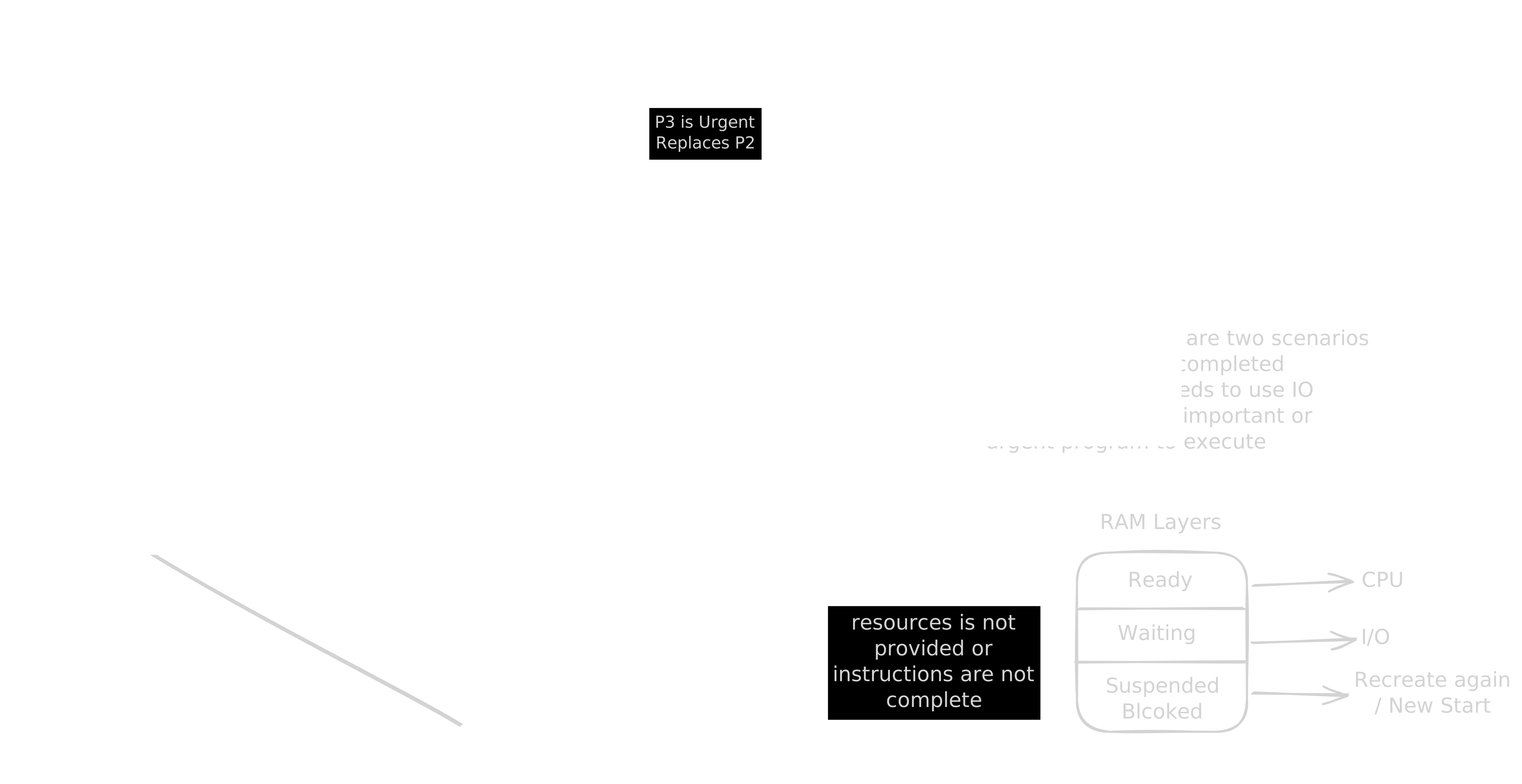
Common Mistakes
- ❌ Saying Ready means the process is currently executing.
- ❌ Saying Waiting means the process is waiting for CPU time.
- ❌ Saying only one process can exist at a time.
- ❌ Saying an urgent process simply “replaces” another process without scheduling/preemption.
- ✅ On a single CPU core, only one execution context runs at a time, while many processes can exist in other states.
Short Exam Notes
- New: Process is being created.
- Ready: Waiting for CPU.
- Running: Executing on CPU.
- Waiting: Waiting for an event/I/O.
- Terminated: Execution has finished.
- Running → Ready: Preemption.
- Running → Waiting: I/O/event wait.
- Waiting → Ready: Event/I/O completed.
- Running → Terminated: Process finishes.
Section 5: Process Control Block (PCB)
Definition
A Process Control Block (PCB) is an operating-system data structure that stores important information about a process.
The OS uses the PCB to manage and control the process.
Key Points
- Every process has an associated PCB.
- The PCB is a data structure, not simply a normal file.
- The operating system maintains PCBs in its protected system data structures.
- The PCB contains information needed to manage a process.
- The OS uses PCB information when scheduling, suspending, resuming, and terminating processes.
- Each process has a unique process identifier (PID).
PCB Attributes
Process ID (PID)
The Process ID is a unique identifier assigned to a process by the operating system.
Example:
Process        PID
-------        ---
P1              0
P2              1
P3              2
...
Pn              n
The exact PID values and whether the first user-visible process starts at 0 depend on the operating system. Therefore, the important concept is that the OS assigns an identifier that distinguishes one process from another.
Other information commonly stored in a PCB includes:
- Process state
- Program counter
- CPU registers
- CPU scheduling information
- Memory-management information
- I/O status information
Example / Code
A simplified conceptual PCB could look like:
PCB
├── PID: 1024
├── State: Ready
├── Program Counter
├── CPU Registers
├── Scheduling Information
├── Memory Information
└── I/O Information
Explanation
When the operating system creates a process, it creates and maintains a PCB for that process.
For example:
P1 ─────→ PCB 1
P2 ─────→ PCB 2
P3 ─────→ PCB 3
If P1 is running and the OS needs to switch to P2, the OS uses the PCBs to save and restore the necessary process information. This is an important part of a context switch.
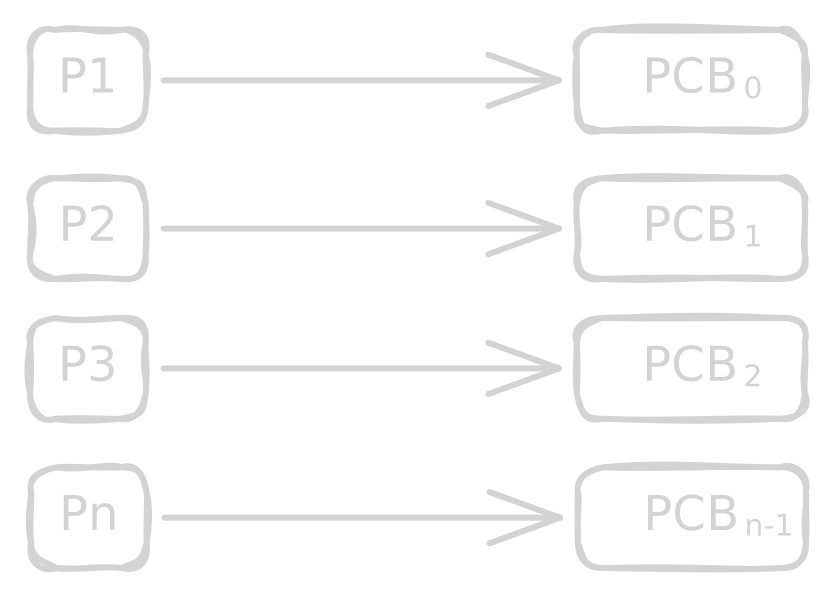
Place the diagram here showing:
P1 → PCB
P2 → PCB
P3 → PCB
...
Pn → PCB
Each process has its own PCB containing its management information.
Output
Process
   ↓
Operating System
   ↓
PCB
   ├── PID
   ├── State
   ├── CPU information
   ├── Memory information
   └── I/O information
Common Mistakes
- ❌ Saying the PCB is simply a file.
- ❌ Saying the PCB contains the entire program.
- ❌ Saying the PCB is stored inside the process.
- ❌ Saying PID values always begin at 0.
- ✅ PCB is an OS-managed data structure containing process-management information.
- ✅ Every process has an associated PCB.
Short Exam Notes
-
PCB = Process Control Block.
-
It is an OS data structure containing process information.
-
Each process has an associated PCB.
-
PID uniquely identifies a process.
-
PCB can contain:
- Process state
- Program counter
- CPU registers
- Scheduling information
- Memory information
- I/O information
-
PCB is essential for process management and context switching.